



Connect to Google Cloud Platform (GCP)
Secure backend access with OIDC federation is available on all plans
To understand how GCP supports OIDC through Workload Identity Federation, consult the GCP documentation.
- Navigate to the Google Cloud Console
- Navigate to IAM & Admin then Workload Identity Federation
- Click on Create Pool
- Enter a name for the pool, e.g.
- Enter an ID for the pool, e.g. and click Continue
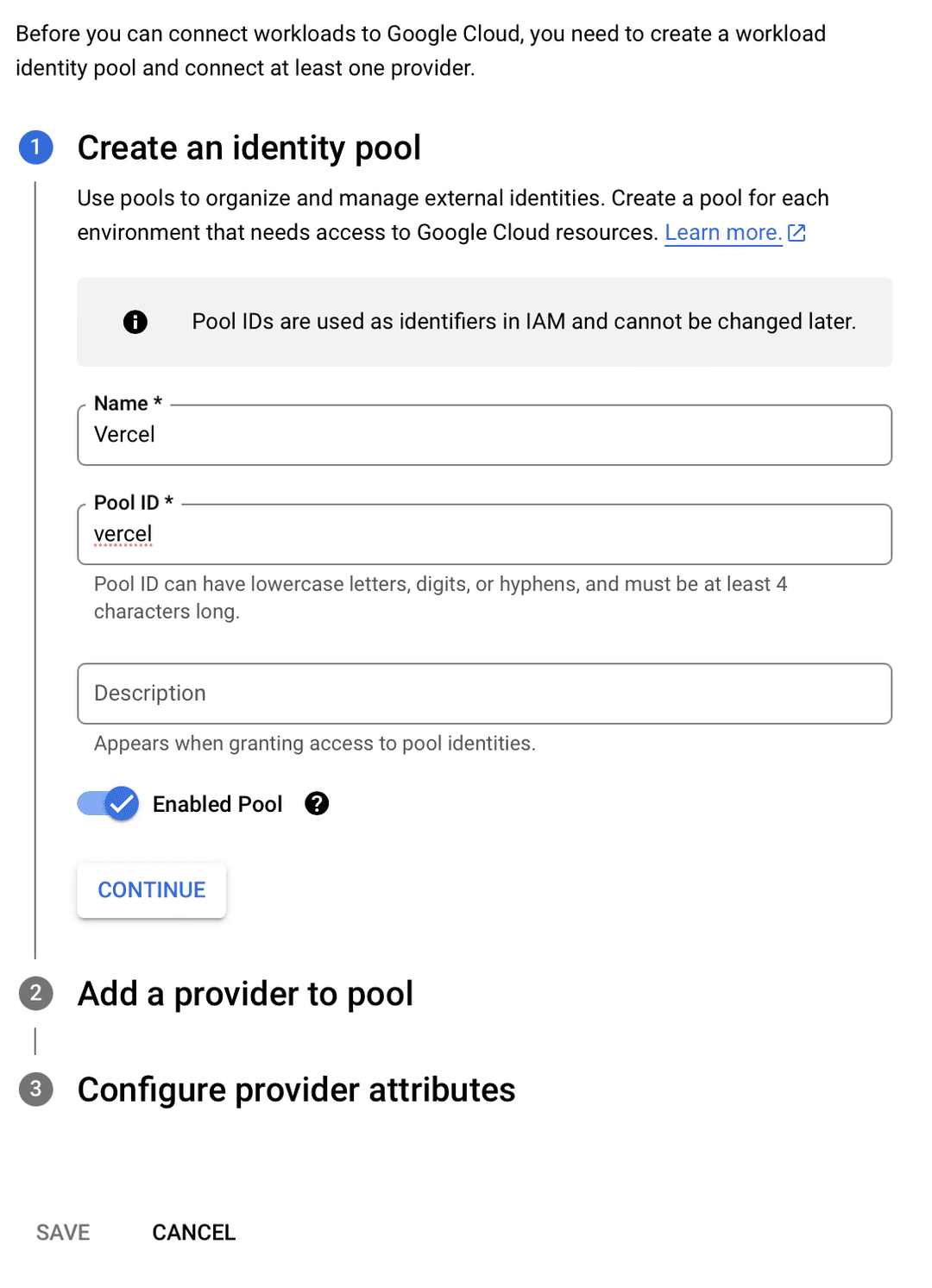
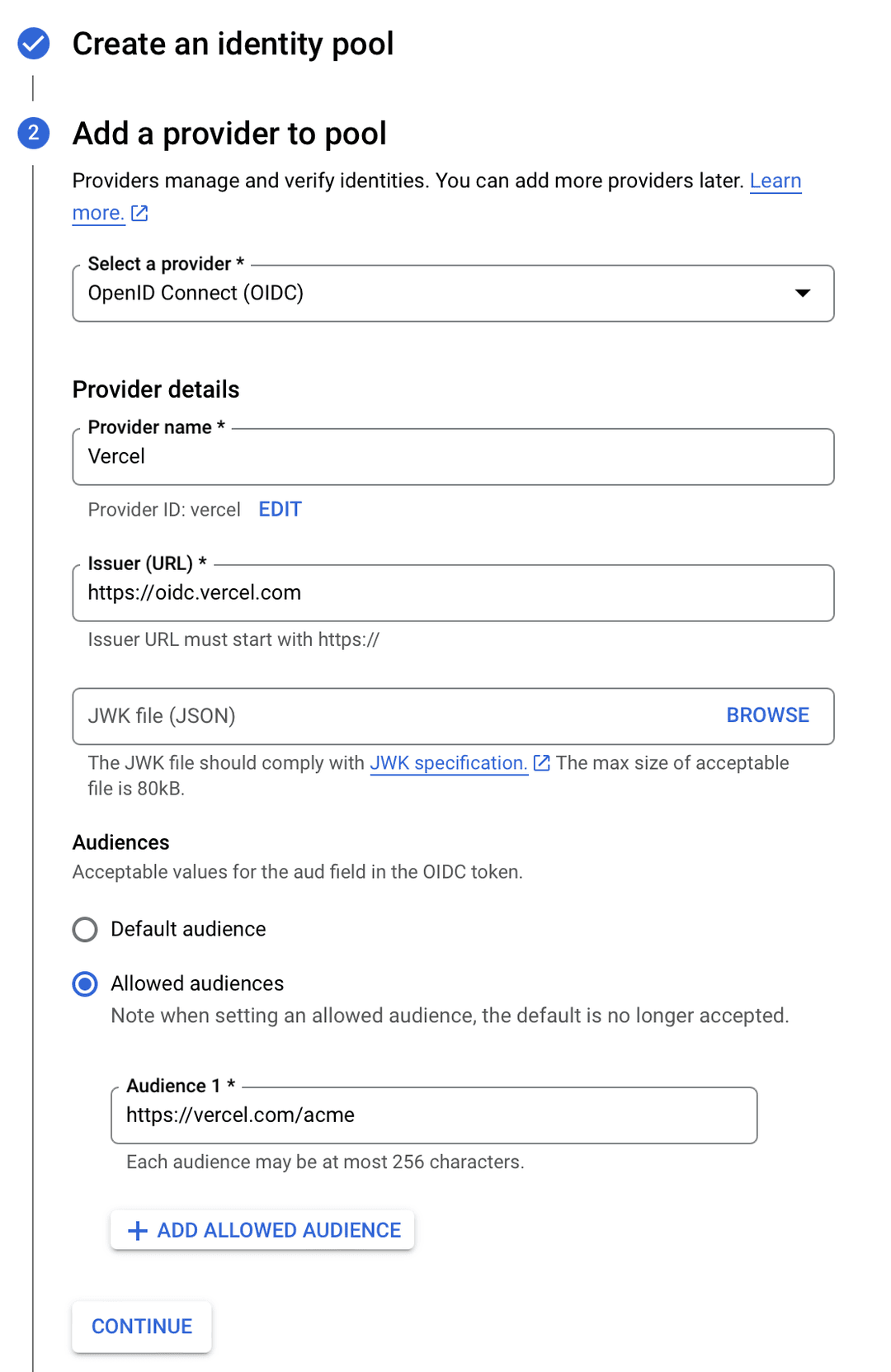
- Select from the provider types
- Enter a name for the provider, e.g.
- Enter an ID for the provider, e.g.
- Enter the Issuer URL, the URL will depend on the issuer mode setting:
- Team: , replacing with the path from your Vercel team URL
- Global:
- Leave JWK file (JSON) empty
- Select from "Audience"
- Enter in the "Audience 1" field and click "Continue"
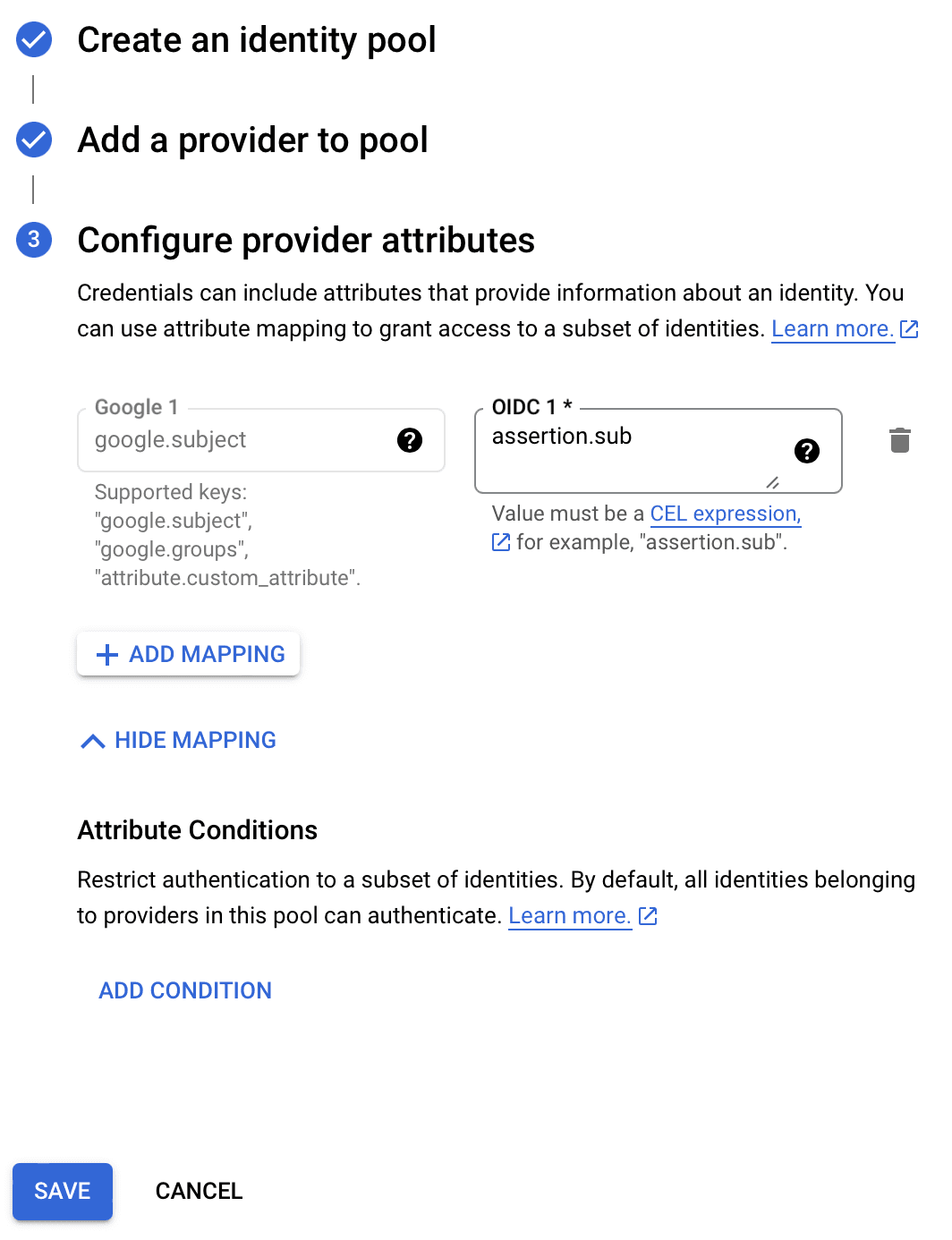
- Assign the mapping to
- Click Save
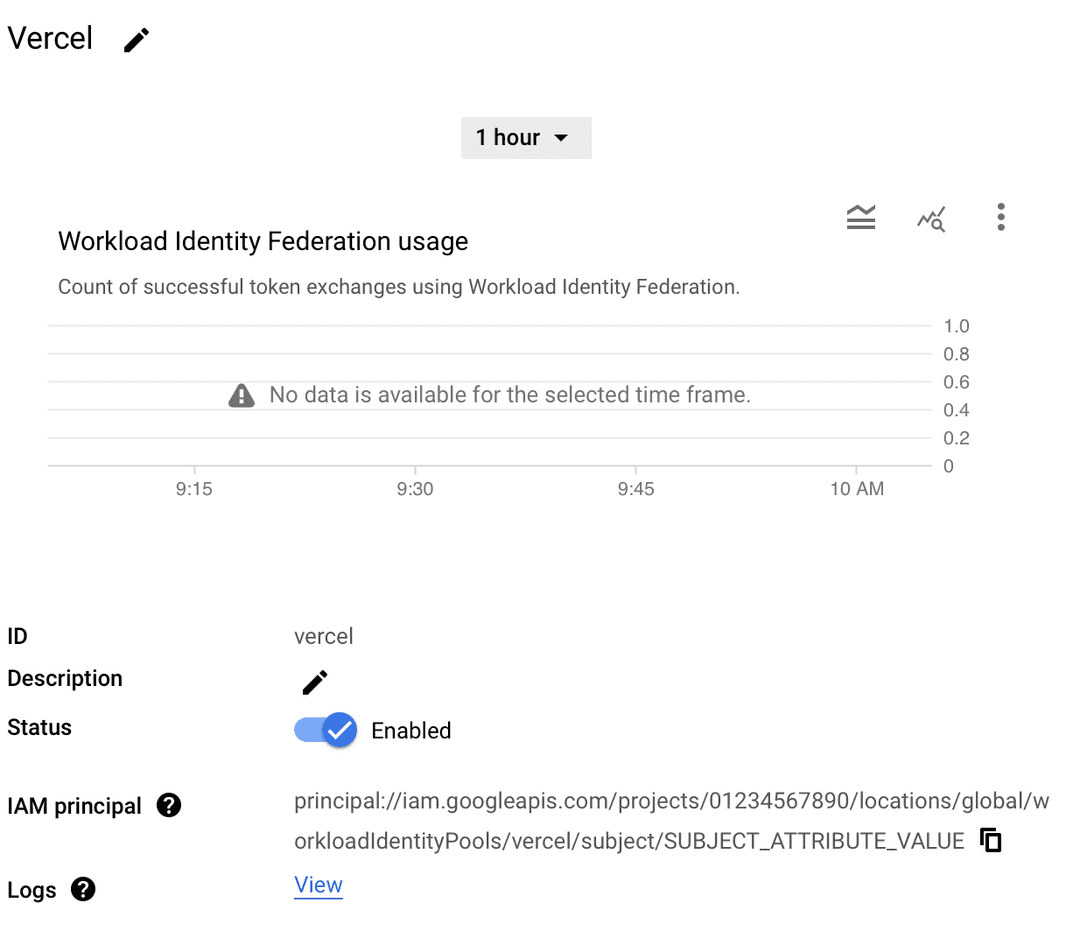
- Copy the IAM Principal from the pool details page from the previous step. It should look like
- Navigate to IAM & Admin then Service Accounts
- Click on Create Service Account
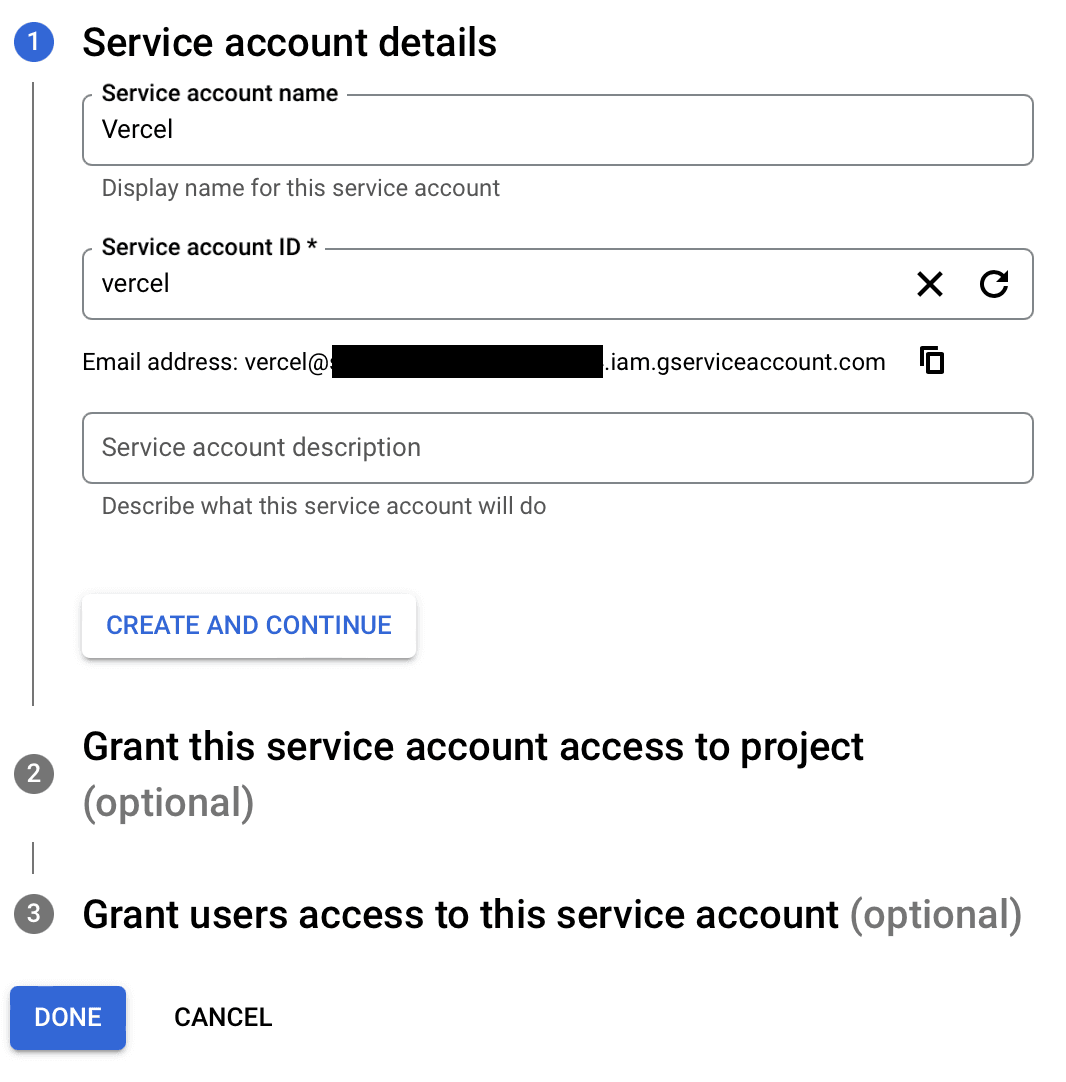
- Enter a name for the service account, e.g. .
- Enter an ID for the service account, e.g. and click Create and continue.
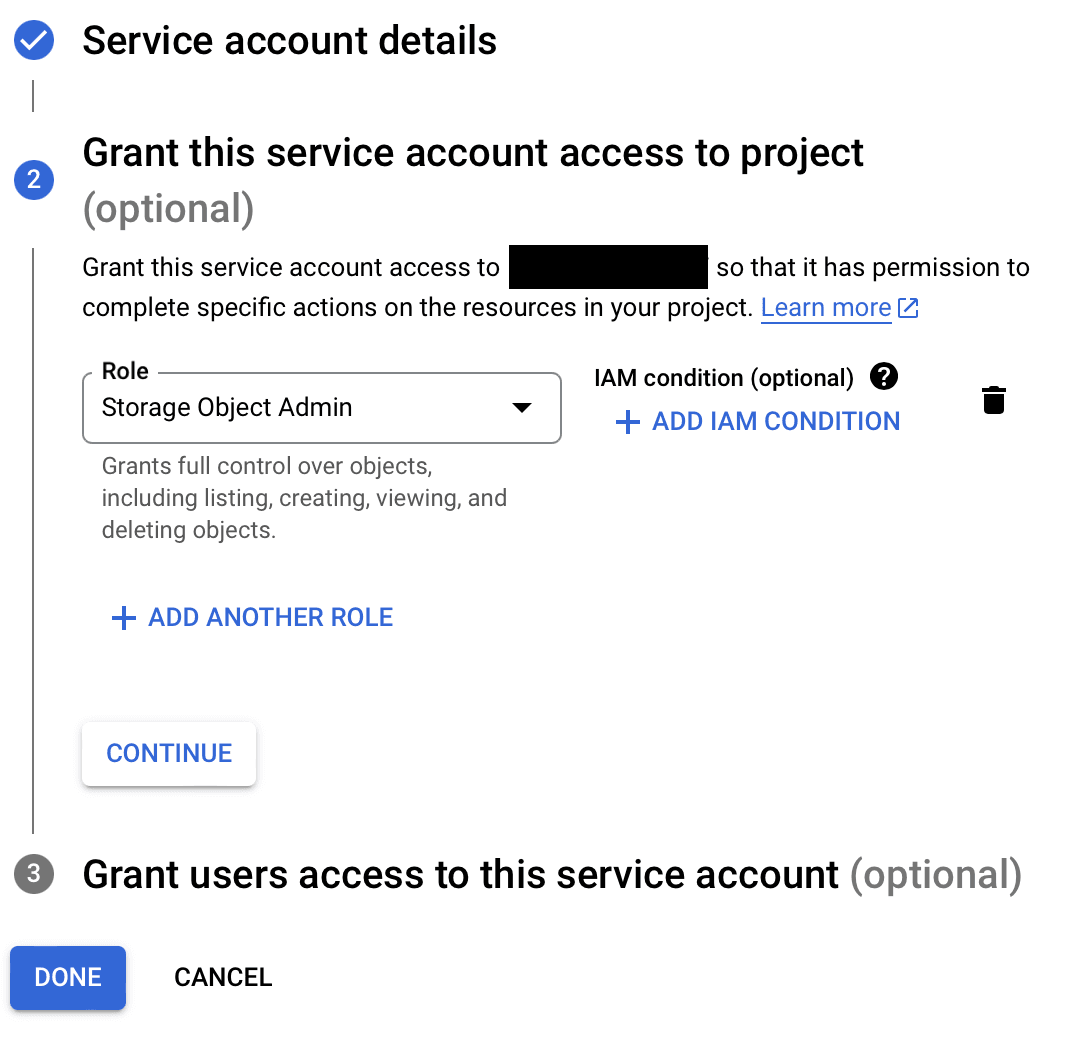
- Select a role or roles for the service account, e.g. .
- Click Continue.
- Paste in the IAM Principal copied from the pool details page in the Service account users role field.
- Replace with . e.g. .
- You can add multiple principals to this field, add a principal for each project and environment you want to grant access to.
- Click Done.
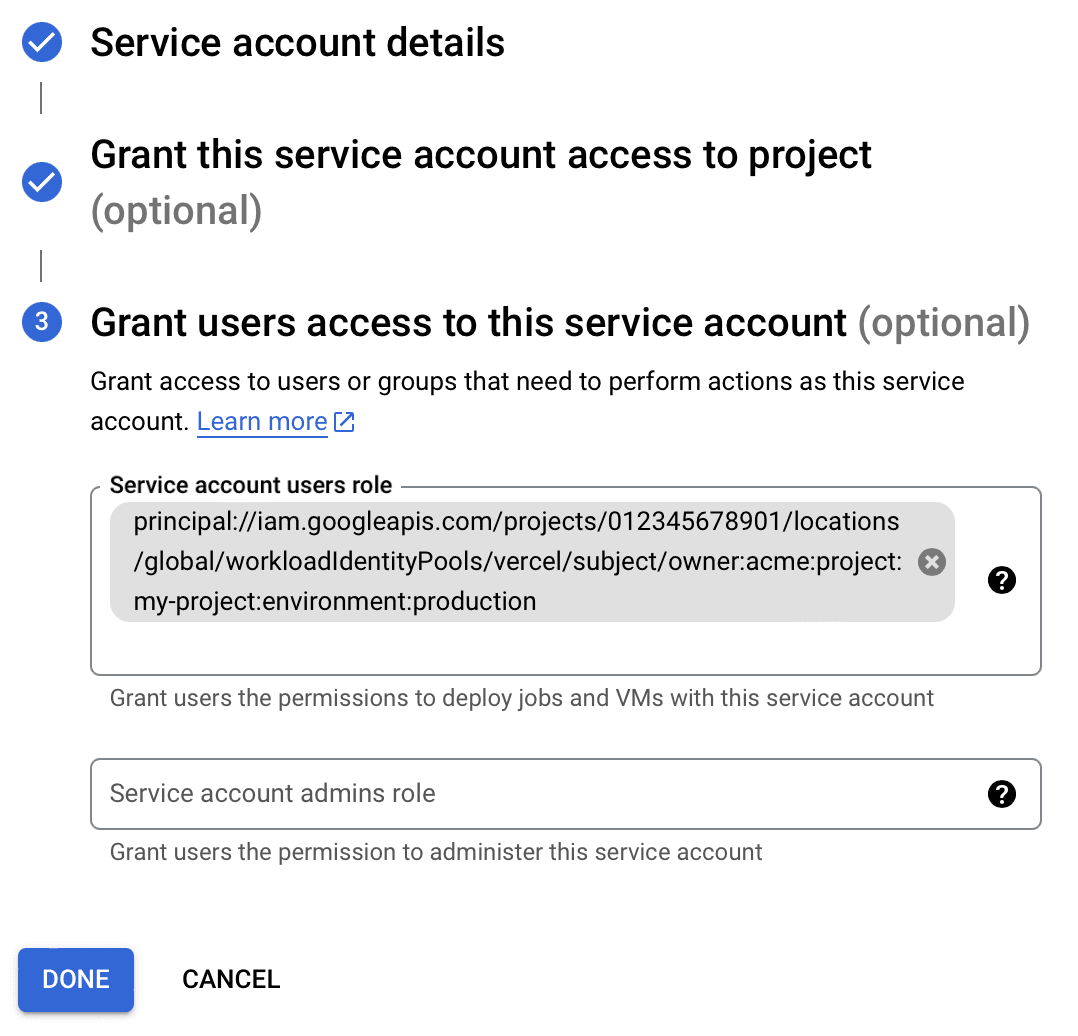
- Paste in the IAM Principal copied from the pool details page in the Service account users role field.
Once you have configured your GCP project with OIDC access, gather the following values from the Google Cloud Console:
Value Location Environment Variable Example Project ID IAM & Admin -> Settings Project Number IAM & Admin -> Settings Service Account Email IAM & Admin -> Service Accounts Workload Identity Pool ID IAM & Admin -> Workload Identity Federation -> Pools Workload Identity Pool Provider ID IAM & Admin -> Workload Identity Federation -> Pools -> Providers Then, declare them as environment variables in your Vercel project.
You are now ready to connect to your GCP resource from your project's code. Review the example below.
In the following example, you create a Vercel function in the Vercel project where you have defined the GCP account environment variables. The function will connect to GCP using OIDC and use a specific resource provided by Google Cloud services.
Install the following packages:
In the API route for this function, use the following code to perform the following tasks:
- Use to create an External Account Client
- Use it to authenticate with Google Cloud Services
- Use Vertex AI with Google Vertex Provider to generate text from a prompt
Was this helpful?